If you’ve ever installed the same game on two phones with the same RAM and storage, only to see one crank 60 FPS and the other stutter at 25 FPS, the culprit is almost certainly not RAM—it’s the CPU architecture: ARM64 vs ARMv7.
Even when two devices list “4 GB RAM” or “64 GB storage,” their underlying processor architecture and how the game’s APK is built for that architecture can make performance differ dramatically. In this article, I’ll break down exactly what ARM64 and ARMv7 mean, why Android splits APKs by architecture, and how to choose or test the right version for your phone.
What Are ARMv7 and ARM64, Anyway?
The Basic Idea
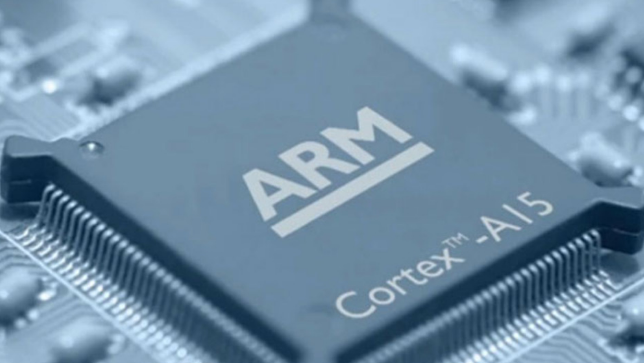
ARM stands for Advanced RISC Machine, a family of CPU designs used in most smartphones and tablets. The “v7” and “64” refer to different architecture generations:
- ARMv7 (also called armeabi‑v7a on Android): a 32‑bit architecture.
- ARM64 (also called arm64‑v8a or AArch64): a 64‑bit architecture, part of ARMv8.
Think of it like this: ARMv7 processes data in 32‑bit chunks, while ARM64 processes in 64‑bit chunks. That difference affects how much data can be handled at once, how much memory can be addressed, and how efficiently certain instructions run.
32‑bit vs 64‑bit: What Actually Changes?
Some concrete differences:
- Memory addressing
ARMv7: limited to about 4 GB of RAM in theory (most phones have less).
ARM64: can address far more memory (theoretical limit is huge; practical limits are set by the OS and hardware).
- Registers and instruction width
ARMv7: 32‑bit general registers (r0–r14), 32‑bit instructions.
ARM64: 64‑bit general registers (x0–x30), plus 32‑bit “w” variants; 64‑bit instructions.
- Performance for modern code
ARM64 often runs modern games and apps more efficiently because compilers can generate code that uses more data per instruction and more parallelism.
This is why, even with identical RAM numbers on paper, one phone can run a game smoother than another: the architecture (and how the APK targets it) matters as much as the raw memory size.
How Android APKs Split by Architecture
ABI and Native Libraries
On Android, the term
ABI (Application Binary Interface) describes which CPU architecture an app’s native code is built for. For ARM-based devices, the common ABIs are:
armeabi-v7a → ARMv7 (32‑bit)arm64-v8a → ARM64 (64‑bit)
When a game uses native code (C/C++ via something like OpenGL, Vulkan, or a game engine), it includes compiled libraries (`.so` files) for each ABI it supports.
Stack Overflow provides further technical context on how these split configurations function.
APK Splitting on Google Play
Google Play uses
App Bundles (AAB) and
split APKs to deliver only the pieces your device needs. If a game supports both ARMv7 and ARM64, Play will:
- Detect your device’s ABI.
- Send you the
arm64-v8a split APK if you’re on a 64‑bit device.
- Send you the
armeabi-v7a split APK if you’re on a 32‑bit-only device.
This means two phones with the same RAM can end up with different native binaries for the same game, leading to different performance.
Why the Same Game Can Run Differently
Even if both phones have 4 GB RAM, similar storage, and run the same Android version, they can still differ because:
- One phone is ARM64-only, the other is ARMv7-only (or 32‑bit only).
- The game’s ARM64 binary is better optimized than its ARMv7 binary.
- The ARM64 version can use more memory and more efficient instructions, while the ARMv7 version is limited and sometimes slower.
In some cases, you’ll even see the opposite: an ARM64 build running
slower than ARMv7 on a specific device, usually due to poor optimization or bugs in the 64‑bit code path.
Unity forums document these specific frame rate drops.
ARMv7 vs ARM64: Performance, Memory, and Efficiency
Processing Power and Game Performance
In general, ARM64 can handle more data per instruction, has more registers to reduce memory accesses, and is better suited for modern game engines. For games, this means better frame rates, more stable performance in complex scenes, and better support for newer graphics APIs.
However, it’s not automatic. If the game’s ARM64 code is poorly optimized, you might see lower FPS, more frequent spikes, and higher power draw.
YouTube tech analysis shows that 64-bit shaders or physics code are not always tuned as well as their 32-bit counterparts.
Memory Limits and Large Games
ARMv7’s 32‑bit limitation becomes a real issue for large open-world games, high-resolution texture packs, and games that load huge levels. On a 32‑bit ARMv7 device, the OS and game both share the 4 GB limit, and in practice, games often get only 1.5–2.5 GB usable. On ARM64, that ceiling is effectively removed for most mobile use cases, allowing more textures in memory and better multitasking.
Battery and Power Efficiency
ARM64 is designed to be more efficient per operation than ARMv7, but it can consume more power if it’s doing more work. On older or low-end 64‑bit chips, the efficiency gains might not be fully realized. That’s why on some budget phones, the ARMv7 version of a game might actually feel smoother and consume less battery, even if it’s technically “less powerful.”
Why Identical RAM Doesn’t Guarantee Identical Performance
When you see “4 GB RAM” on two phones, that’s just one piece. The real performance formula includes CPU architecture, CPU model, GPU quality, memory bandwidth, and software optimization.
University research has shown that even “identical” smartphone models can have up to 20% performance differences due to manufacturing variation in the CPU.
How to Check If Your Phone Is ARMv7 or ARM64
Some Android phones show architecture info in Settings under Hardware info or Processor. Alternatively, use third‑party system apps like CPU‑Z or AIDA64. Look for fields like “CPU ABI” or “Architecture.” If you see
arm64-v8a, your device is 64‑bit. If you only see
armeabi-v7a, it’s 32‑bit only.
Alibaba Tech Tips provides a guide on identifying these system specifications.
Practical Tips: Choosing the Right APK and Settings
- Check your device ABI: Use Settings or a system app to confirm if you’re ARM64 or ARMv7.
- Prefer the official Play Store version: Play automatically chooses the correct ABI and usually the best-optimized build.
- If downloading manually: Pick
arm64-v8a if your device supports it, and armeabi-v7a if you’re 32‑bit only. Avoid “universal” APKs unless you trust the source.
- Test both if you have both ABIs: Some games let you install both versions. Launch each, check FPS and stability, and stick with the smoother one.
- Adjust in-game settings: On ARMv7 or low-end ARM64, lower resolution, reduce shadow quality, and disable post-processing effects.
Final Thoughts
If two phones have identical RAM but one runs a game smoothly while the other struggles, the difference is almost never just “RAM.” It’s the combination of CPU architecture, CPU and GPU quality, and how well the game is optimized for each architecture. ARM64 is the right path for modern games, but it’s not magic: bad optimization can make it slower than a well-tuned ARMv7 build. The key is to know your device’s ABI, pick the correct APK, and test both versions if you can.